
A Guide to Smarter Sharing in ArcGIS
February 4, 2026 2026-02-04 14:31A Guide to Smarter Sharing in ArcGIS

Imagine this: you’ve created a great collection of maps, web apps, and layers, all polished and ready. The final hurdle? Sharing them effectively. The good news is; you’re not on your own. This guide walks you through the different sharing options available in ArcGIS and helps you choose the right one for your needs. Fair warning: this is a detailed read, so you might want to grab a cup of tea before diving in.
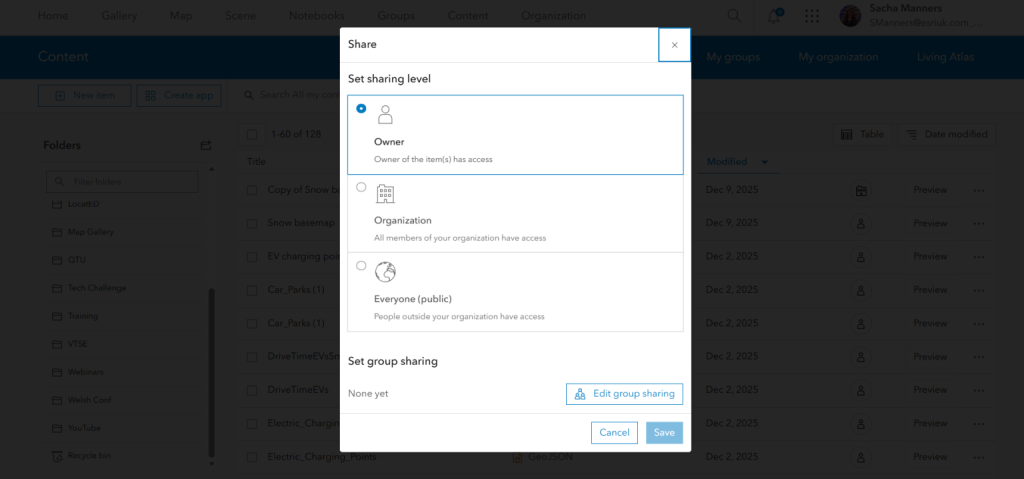
Content Sharing Options in ArcGIS Online
Before you start…
Here are a few key considerations to keep in mind when sharing content in ArcGIS.
Understanding User Types
Content sharing in ArcGIS starts with identity. Named users form the foundation of the ArcGIS security model, while roles and privileges define what each user can do. To share content, you’ll need a Creator user type or higher.
Roles and Privileges
Your ability to create, edit, and share content depends on the role and privileges assigned to your account. Default roles come with predefined privileges, but administrators can create custom roles to better suit organizational needs. Refer to Esri’s documentation for more details.
Know Your Audience
Who should be able to access your content? It could be just you, specific colleagues, external partners, your entire organization, or even the wider ArcGIS community. In many cases, sharing involves a mix of these options. For this guide, let’s assume you’ve been working on exciting content such as web maps, apps, or layers.
Sharing Scenarios
Content Still Under Development
If your work isn’t ready to be seen or edited, no problem. All newly created items in ArcGIS default to Owner only, meaning they are accessible only to you and organization administrators. Access is controlled through secure user authentication.
Content Ready for Review
When your content is ready for feedback, you can share it securely with selected individuals using groups. Groups can include members from your organization and, if enabled by your administrator, members from other ArcGIS organizations as well.
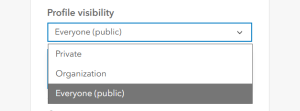
Note: Ensure user profiles are set to public so they can be found and invited.
When creating a group, you control:
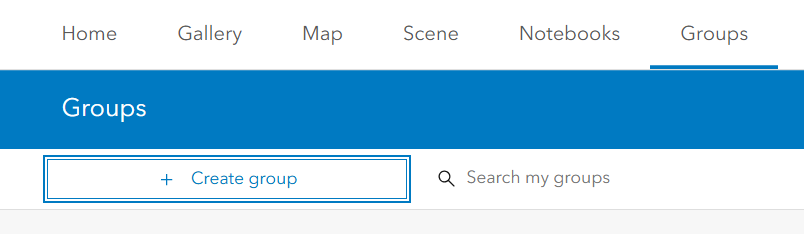
- Who can view the group
- How members join
- Who can contribute content
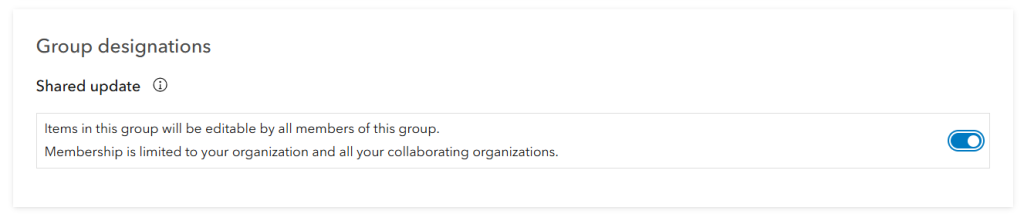
- Who can edit shared items
Important: Enable shared update at the time of group creation if you want members to edit content. This setting cannot be changed later.
Content for Your Organization
Sharing content with your organization allows all named users to access it through the My Organization tab. You can also combine organization sharing with group sharing to highlight content for specific teams.
Public Content
Ready to go public? Sharing with Everyone (public) makes your content accessible to anyone.
- In ArcGIS Online, public users do not need an ArcGIS account.
- In ArcGIS Enterprise, public access may be limited to users within the organization’s network, depending on configuration.
Sharing with the Wider ArcGIS Community
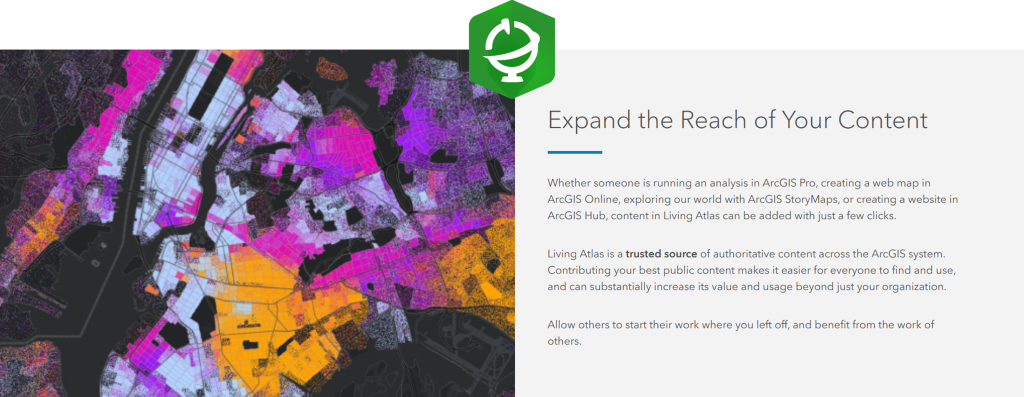
If your content is high-quality and authoritative, consider contributing it to the ArcGIS Living Atlas of the World. Publicly shared content that meets Esri’s criteria – accuracy, reliability, and thorough documentation—can be nominated for inclusion in this global data repository.
Reaching Targeted Communities with ArcGIS Hub
ArcGIS Hub is ideal for sharing content with specific communities while supporting public engagement. It allows you to create no-code or low-code sites without web development experience and is available to Creator user types and above.
With ArcGIS Hub Premium, you can also build user communities. Community accounts allow users to sign in, provide feedback, join groups, and collaborate on content and site design based on assigned privileges.
Sharing Across Organizations
Content for Specific External Users
To share content with selected users from another organization, groups are the simplest solution.
For large-scale or ongoing collaboration, organizational collaborations offer a more powerful option.
A Closer Look at Collaborations
Collaborations extend content sharing beyond standard methods through trusted relationships between ArcGIS Online and ArcGIS Enterprise organizations. They are designed for organizations with shared goals and structured agreements.
There are two main collaboration types:
- Partnered collaborations
- Distributed collaborations
You can use one or both to maximize the reach of your GIS content.

Partnered Collaborations
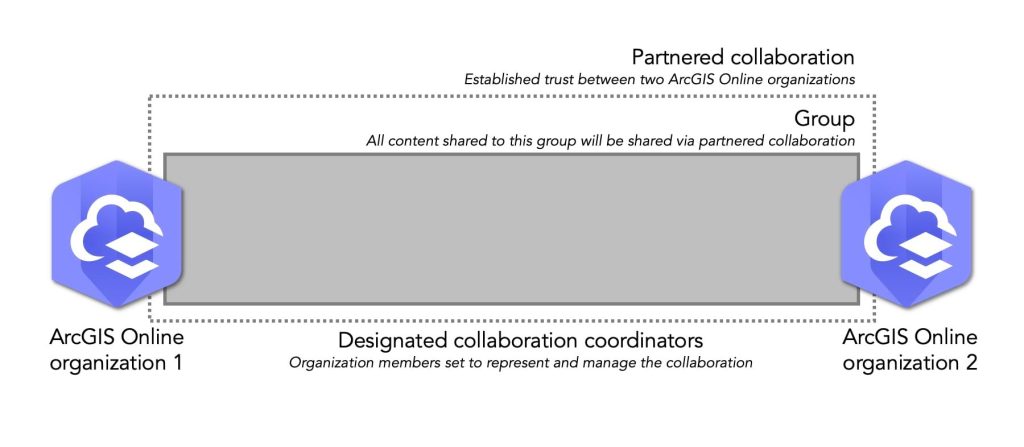
Partnered collaborations establish a formal relationship between ArcGIS Online organizations. They allow secure sharing, editing, and updating of content through shared groups, while each organization retains ownership of its data.
- Storage credits are charged to the content owner
- Analysis credits are charged to the organization running the analysis
- Editing must be enabled on feature layers for collaborators
Designated collaboration coordinators manage group membership, allowing users to be added directly without invitations.
Note: An organization can have up to 20 partnered collaborations. When a collaboration ends, access to shared content is revoked.
Distributed Collaborations
Distributed collaborations support sharing between:
- ArcGIS Online and ArcGIS Enterprise
- Multiple ArcGIS Enterprise organizations
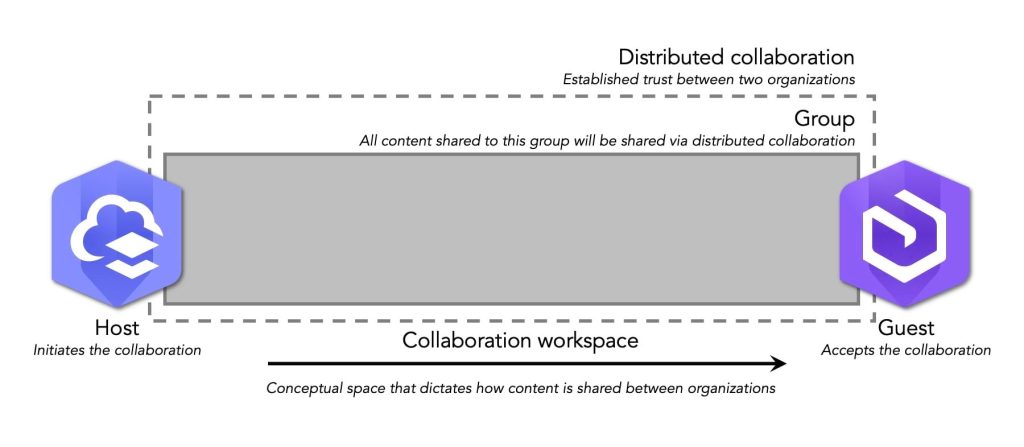
The organization that creates the collaboration acts as the host, while others join as guests. The host defines how content is shared through collaboration workspaces and groups.
Important notes:
- ArcGIS Online must host collaborations involving ArcGIS Enterprise
- An ArcGIS Enterprise organization can collaborate with only one ArcGIS Online organization
Final Thoughts
If you’ve made it this far, well done. Hopefully, this guide helps you avoid last-minute sharing stress and gives you confidence in choosing the right sharing approach. With the right setup, sharing your GIS content can be just as rewarding as creating it.
Check out our Website or Esri Eastern Africa Online store for more details on our products.